
 ES
ESHow to write your AI worker's manual
Learn how to write your AI worker's manual in AgentIQ, fix answers from Chats with Add to the manual, and test every change in the public test chat link.
September 26, 2026 · 3 min read
The manual is where you tell your AI worker what it answers, which rules it follows and what it can't say. When the worker gets something wrong, the fix is almost always a clearer line in the manual.
Where the manual is
- In the sidebar, go to Workers > Team and open your worker.
- Go to the How it works tab.
- Open Training. That's the manual.
The same tab has Knowledge, to upload documents the worker can look up, and Catalog, with the products it sells.
What to write
Think of the manual as the instructions you'd give a new hire on their first day. It covers three things:
What it answers
What customers ask every day: opening hours, delivery areas, payment methods, wait times, how to place an order or book an appointment.
Which rules it follows
How it should act. For example:
- "Before confirming a delivery, ask for the location on WhatsApp."
- "If the customer asks for an invoice, ask for their ID number."
- "Orders after 10 p.m. are delivered the next day."
What it can't say
The limits. For example:
- "Don't promise exact delivery times."
- "Don't offer discounts that aren't in the catalog."
- "Don't give diagnoses; book an appointment with the professional."
How to write it well
- Short, concrete sentences. "We're open Monday to Saturday, 11 a.m. to 9 p.m." works better than "we have long hours".
- One rule per line. It's easier to review and fix.
- Don't repeat prices. Prices live in the catalog. If you copy them into the manual and they change later, the worker can get confused.
- Say what to do when it doesn't know. For example: "If you don't know the answer, use Ask for help."
Fix answers from Chats
You don't have to predict everything upfront. The most useful approach is to correct real conversations:
- Go to Inbox > Chats.
- Open a conversation where the worker answered badly.
- Correct that answer with what it should have said.
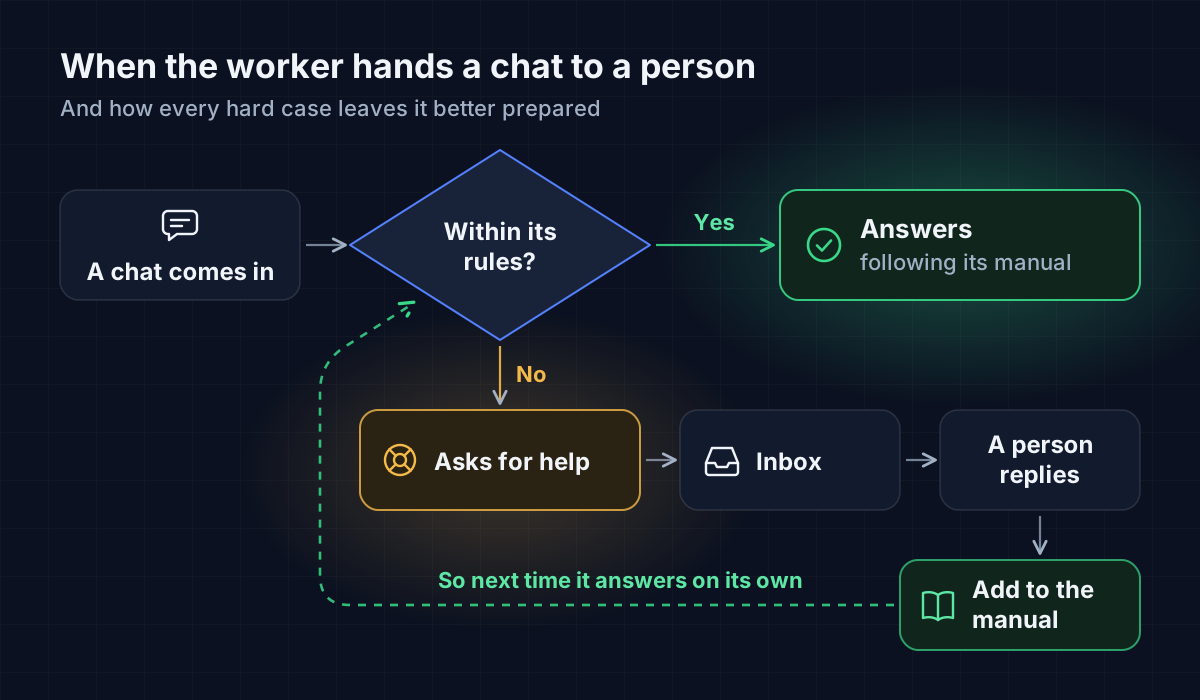
- Click Add to the manual. The correction goes into the manual and the worker uses it from then on.
That way the manual grows with the cases you actually get.
Hand off to a person
Some conversations are better handled by someone on your team: a complaint, a special order, an upset customer. In the What it says > Ask for help tab you define when the worker hands the conversation to a person. Those conversations show up in the Inbox.
Test every change
After editing the manual, try it in the Test chat: a public link where you talk to your worker as if you were a customer.
- Open your worker's Test chat.
- Ask the same question that went wrong before.
- Check that it now answers the way you want.
- Also try hard questions: something you don't sell, a customer asking for a discount, an address outside your area.
You can share the link with someone on your team so they can test without logging into the dashboard.
Next step
To see how many conversations your plan includes and how credits are used, continue with Free plan and credits.