
 ES
ESAI for restaurants: a practical guide to orders, WhatsApp and delivery
AI for restaurants explained plainly. What it can do for your orders, WhatsApp and deliveries, what to automate first, and how to start free with no card.
September 26, 2026 · 7 min read
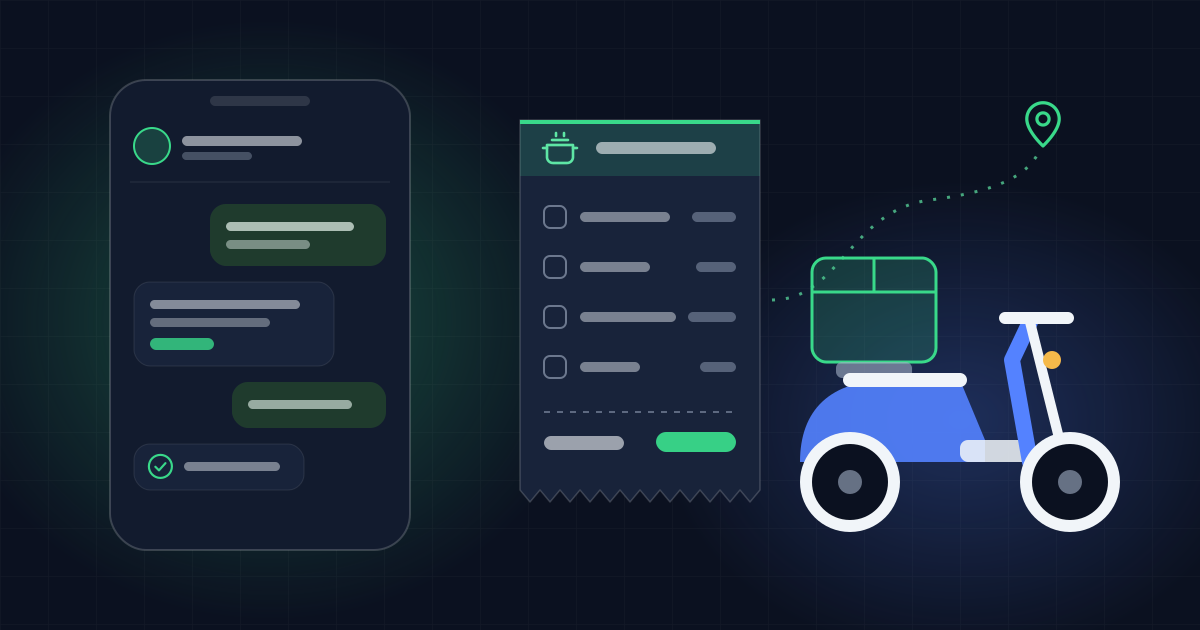
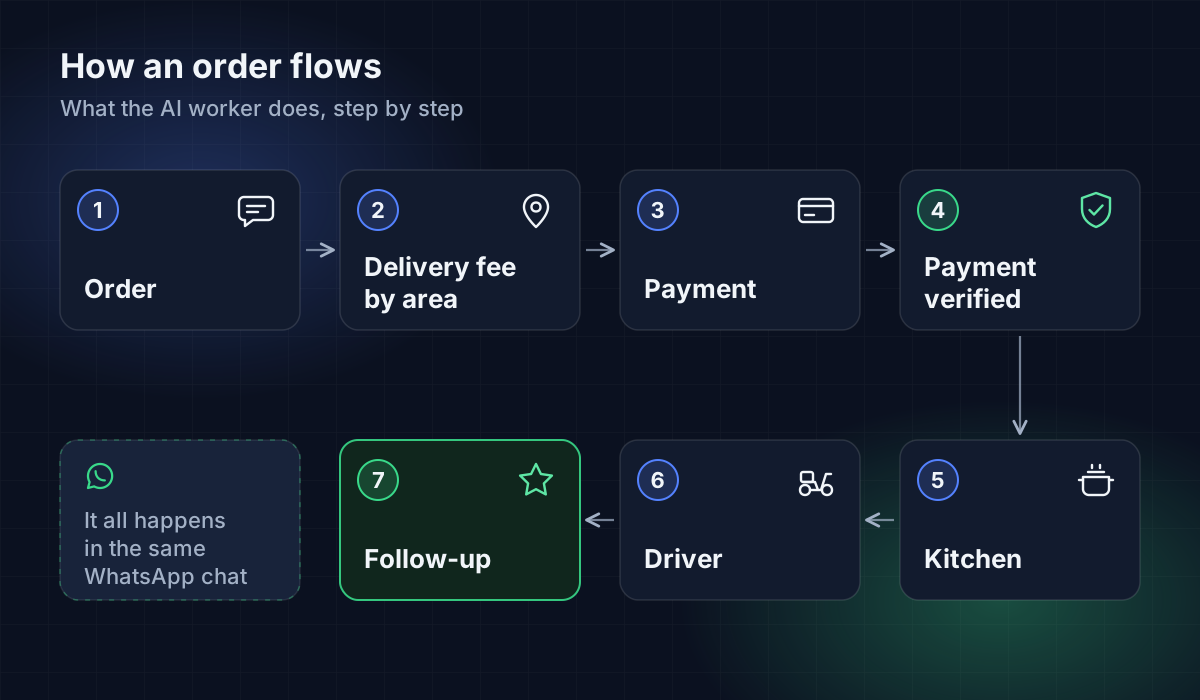
AI for restaurants is mostly useful for one thing: handling the orders that come in through WhatsApp without someone on your team glued to the phone. An AI worker can take the order, confirm prices against your real menu, ask for the location, charge, notify the delivery person and follow up after delivery.
It doesn't replace the kitchen or the waiter. It replaces the repetitive work of answering "what's on the menu?", "how much is delivery?" and "is my order on its way?" a hundred times a day.
This guide covers what it's for, what to automate first, how to get started and what to watch out for so it doesn't work against you.
What AI does for a restaurant
When people talk about artificial intelligence for restaurants, many things get mixed together: inventory forecasting, cameras, robots, sales analytics. For most small and mid-sized restaurants, the use with the most immediate impact is much simpler: the conversation with the customer.
Taking orders on WhatsApp
This is the main use case. The customer writes, the AI worker shows the menu, answers questions ("does the burger come with fries?"), builds the order with the real prices and confirms it. It doesn't make up prices because it works from your catalog.
Coordinating deliveries
A delivery order has several steps that tend to get tangled: getting the address, working out the delivery fee, telling the delivery person. An AI worker can ask for the location on WhatsApp and notify the delivery person when the order is ready to go.
Charging
The worker can send a payment link or share the payment methods you accept, such as bank transfer or local wallets like Nequi and Daviplata, depending on what you set up.
Following up
After delivery, the worker can handle post-sale: a complaint, a question, feedback. And if the case is sensitive, it hands it to a person on your team.
Answering the usual questions
Opening hours, address, parking, vegetarian options. Questions your team answers every day that you can write down once.
Why now
Interest in this topic keeps growing. On Google Trends, between September 2025 and September 2026, searches for "ai for restaurants" peaked between late November and December 2025, right in the holiday season. That makes sense: it's when the most orders come in and when it's most obvious that the restaurant's WhatsApp goes unanswered.
If your restaurant has a similar peak in December, on paydays or on weekends, that's when an AI worker saves you the most headaches. Ideally, set it up before the peak, not during it.
What to automate first
Don't try to automate everything on day one. This order works:
| Priority | What to automate | Why first |
|---|---|---|
| 1 | FAQs (hours, address, delivery areas) | Zero risk and it takes volume off right away |
| 2 | Showing the menu with prices | Customers decide faster |
| 3 | Taking the full order | This is where you save the most time |
| 4 | Asking for location and notifying the driver | Avoids address mistakes |
| 5 | Payment | Once you trust the flow |
| 6 | Follow-up and post-sale | Better experience without loading the team |
Make sure each step works well before adding the next. If the worker still gets the menu wrong, it shouldn't be charging yet.
How to get started with AgentIQ
AgentIQ has a worker designed for restaurants. Here's how to start:
- Create your account at app.ageentiq.com/register. No card required.
- Connect your WhatsApp with Meta's quick connection, or leave it for later.
- In What does it do?, pick Restaurants.
- In What does it need to do?, pick Take orders and dispatch deliveries. This option only appears for restaurants.
- In Tell us about your business, describe your restaurant: what you sell, hours, delivery areas.
- Click Create my worker and choose Continue on Free.
With this preset, the worker takes the order with the real menu prices, asks for the location on WhatsApp, charges, notifies the delivery person and handles post-sale.
Then:
- Upload your menu in Products, with categories and combos. See Upload your catalog or menu.
- Set up deliveries in the worker's Deliveries tab: your delivery people or delivery companies, and the delivery fee.
- Set up payments in the Payments tab: Mercado Pago links, Nequi, Daviplata or bank transfer.
- Write the manual with your rules. See How to write the manual.
- Test it with the Test chat before opening it to customers.
Incoming orders land on the Orders board, and conversations in the Inbox.
To see what all this looks like for a restaurant, visit the AI for restaurants page.
What to check before trusting it with your orders
A badly configured AI worker can do more harm than having none. These are the things worth checking:
Prices come from the menu, not from memory
If a tool answers prices from a long text or an old PDF, sooner or later it will charge the wrong amount. Look for one that works from a structured catalog you can update.
It knows when to ask for help
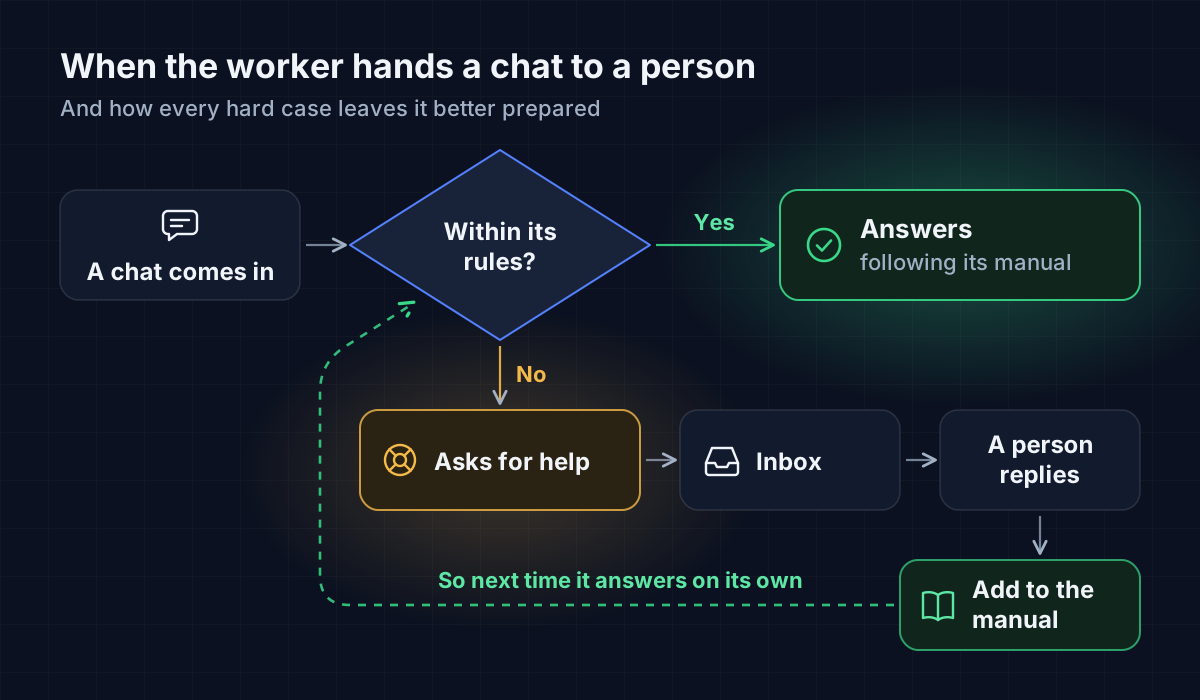
An upset customer, a large order for an event, an allergy. Some conversations need a person. In AgentIQ that's set up with Ask for help, and those conversations show up in the Inbox.
It doesn't promise what you can't deliver
Exact delivery times, discounts that don't exist, sold-out items. Write these in the manual as things the worker can't say.
You can fix it fast
There will be answers you don't like. What matters is that fixing them is easy. In AgentIQ you correct the answer from Chats and send it to the manual with Add to the manual.
You know how much it uses
Check your plan's conversation limit and how it's measured. If your restaurant gets many orders, the free plan is good for testing, but in peak season you'll probably need more. See Free plan and credits.
Customers know who they're talking to
It's good practice for the worker not to pretend to be a person. Give it a name and a clear way of introducing itself.
Common mistakes when starting
- Uploading an incomplete menu. If products are missing, the worker won't offer them or will say you don't have them.
- Repeating prices in the manual. When you change a price in the catalog, the manual goes out of date and the worker gets confused.
- Not testing. Ten minutes in the test chat saves you complaints.
- Automating everything at once. Start with questions and orders, and add payment and post-sale once the flow is solid.
- Forgetting to check the inbox. Conversations the worker hands to a person need an answer.
Frequently asked questions
Is AI for restaurants worth it for a small business?
Yes. It's actually where it shows the most: in a small restaurant, the same person who cooks or runs the register is usually the one answering WhatsApp. An AI worker takes that part off their plate.
Do I need to know how to code?
No. In AgentIQ everything is set up from the dashboard: you pick the job, upload the menu and write the manual in your own words.
Can the worker take table reservations?
The restaurant preset is built for orders and deliveries. For other cases you can build a custom worker by describing what you need, and check in the test chat whether it answers the way you want.
What payment methods can it handle?
You can set up Mercado Pago payment links and methods like Nequi, Daviplata or bank transfer.
How much does it cost to start?
You can start on the free plan, which includes 9,000 credits per month (about 50 conversations) and doesn't require a card. On the free plan, the worker signs with AgentIQ branding.
Does it only work on WhatsApp?
WhatsApp is the main channel, and you can also connect an email mailbox. Today those are the two available channels. See Connect WhatsApp.
What if the worker makes a mistake?
You correct the answer from Chats and send it to the manual so it doesn't happen again. For sensitive cases, set up Ask for help so a person takes over the conversation.